Technological Innovation
Confusing SSD Interfaces: Which One Should You Pick?
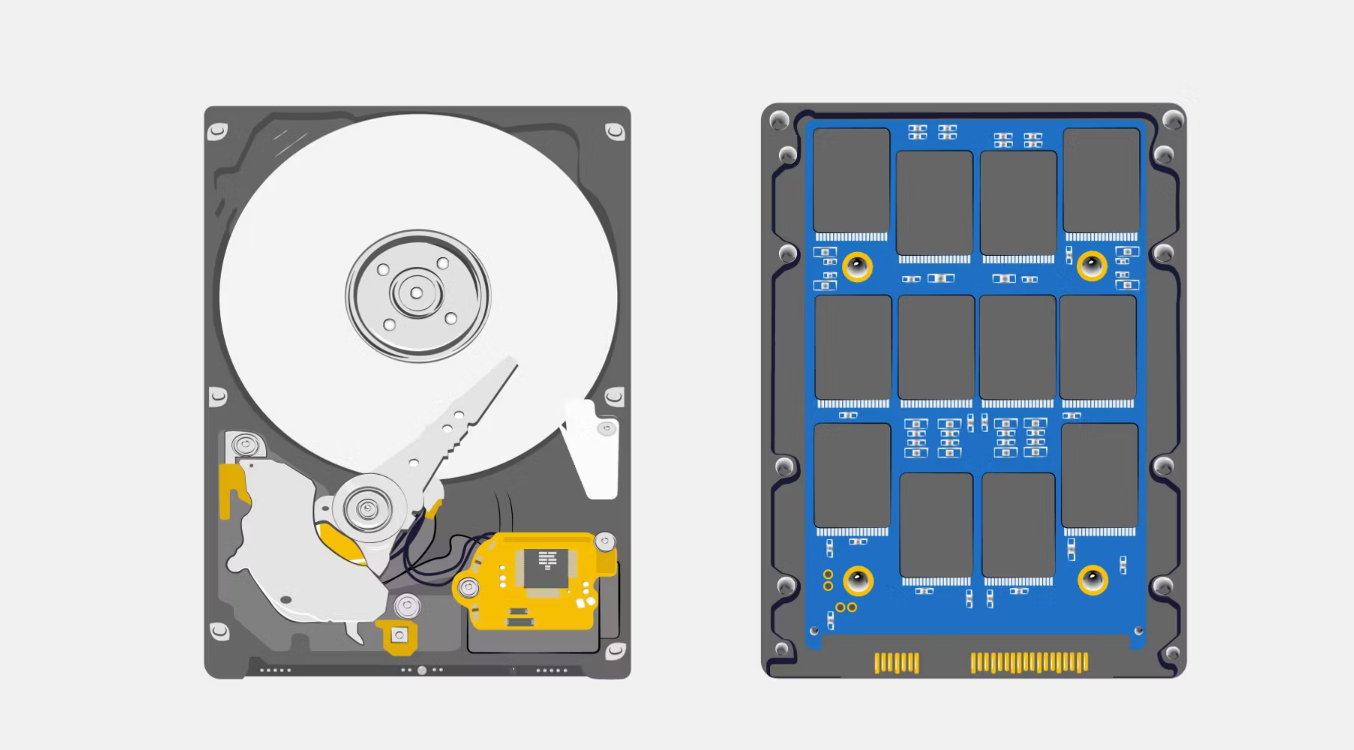
Nowadays, computers use two main types of storage drives: HDD (mechanical hard drive) and SSD (solid-state drive). Both store your files, photos, games and all kinds of digital data. SSDs are built with memory chips instead of spinning metal disks. They load data way faster and fix the slow performance limits that old mechanical hard drives have.
SSD interfaces come in many types, and it’s easy to mix them up. The most widely seen options include SATA, mSATA, full-size PCIe, M.2, SATA Express and U.2. Below we’ll walk through each one simply.
1. SATA 3.0: The Most Common Basic SSD Interface
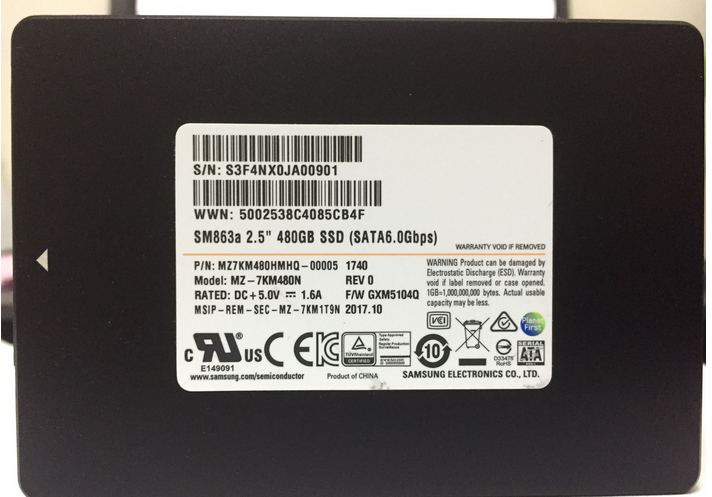
SATA 3.0, also called SATA III or SATA 6Gbps, is the oldest widely used hard drive standard out there. It tops out at 6 Gbps of bandwidth, with real-world SSD speeds maxing out around 550 MB/s.
SATA 3.0 still holds a big share of the storage market. It’s perfect for people who just need extra space to store videos, documents and games without spending extra cash on faster high-end drives.
2. mSATA: Outdated Mini SATA for Old Thin Laptops
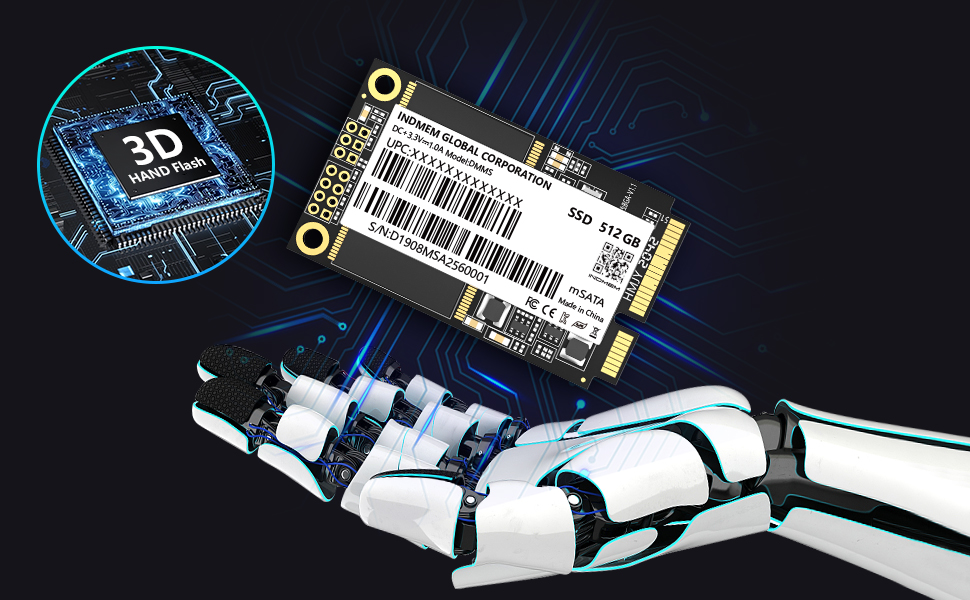
mSATA stands for mini-SATA. It was made for slim ultrabooks and small portable laptops years ago to save physical space inside tight chassis. Even though it’s smaller, mSATA still uses the same SATA speed limit of 6 Gbps. It never delivered faster performance than regular SATA SSDs.
This interface is fully obsolete in 2026. No new laptops or motherboards ship with mSATA slots anymore. M.2 drives completely replaced this standard, so you’ll only find mSATA ports on very old pre-2015 notebook computers. Skip mSATA entirely for new builds or upgrades.
3. PCIe: The Fast High-Speed Bus for Top-Tier SSDs
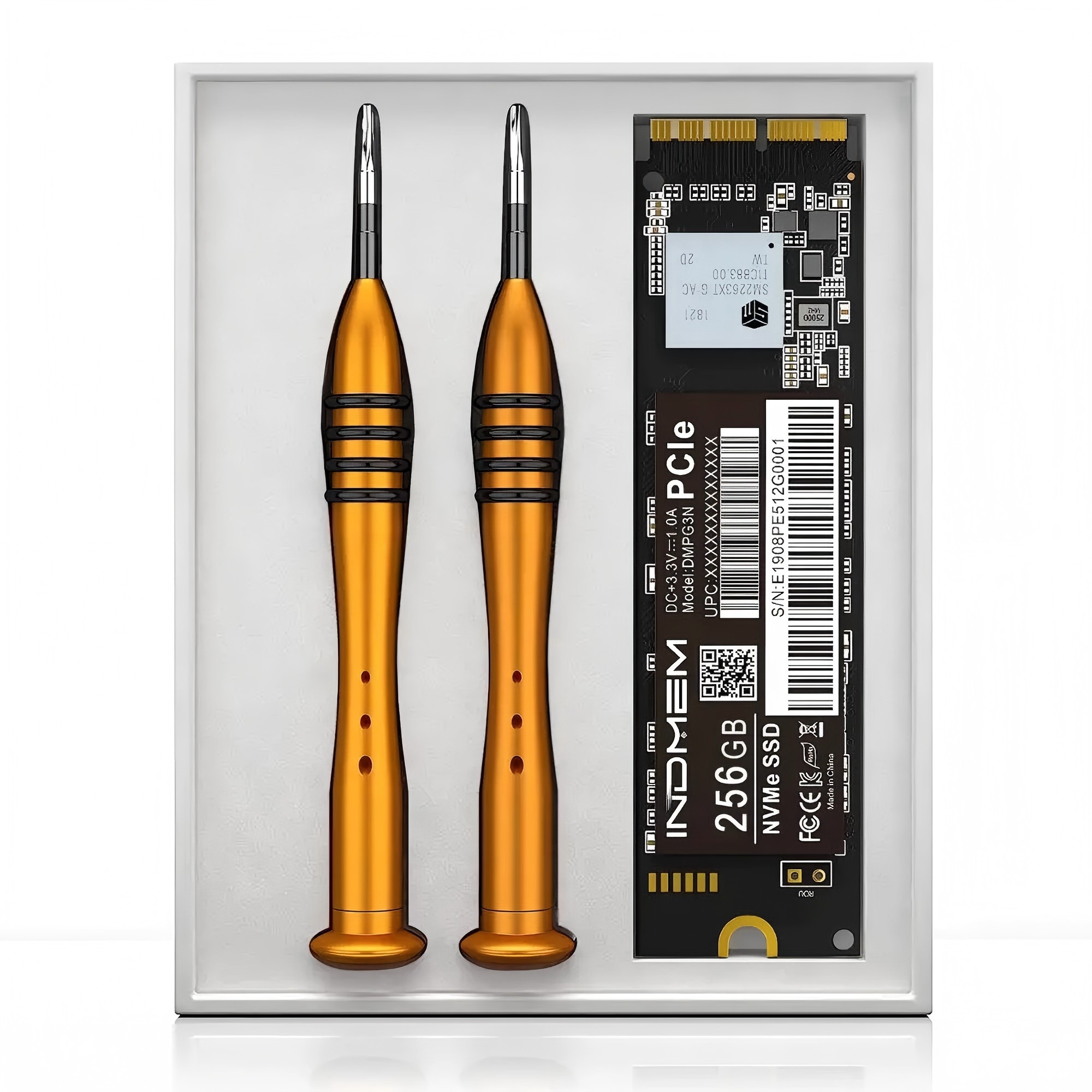
PCIe 4.0 x4 hits 32 Gbps bandwidth, with fast drives reaching 5,000 to 7,400 MB/s read speeds. These work great for gaming, video editing, 3D modeling and any heavy tasks that move large files quickly. PCIe 5.0 doubles that speed again, but costs more and only benefits professional creators or hardcore PC enthusiasts.
4. M.2: The Mainstream Standard for All New PCs & Laptops
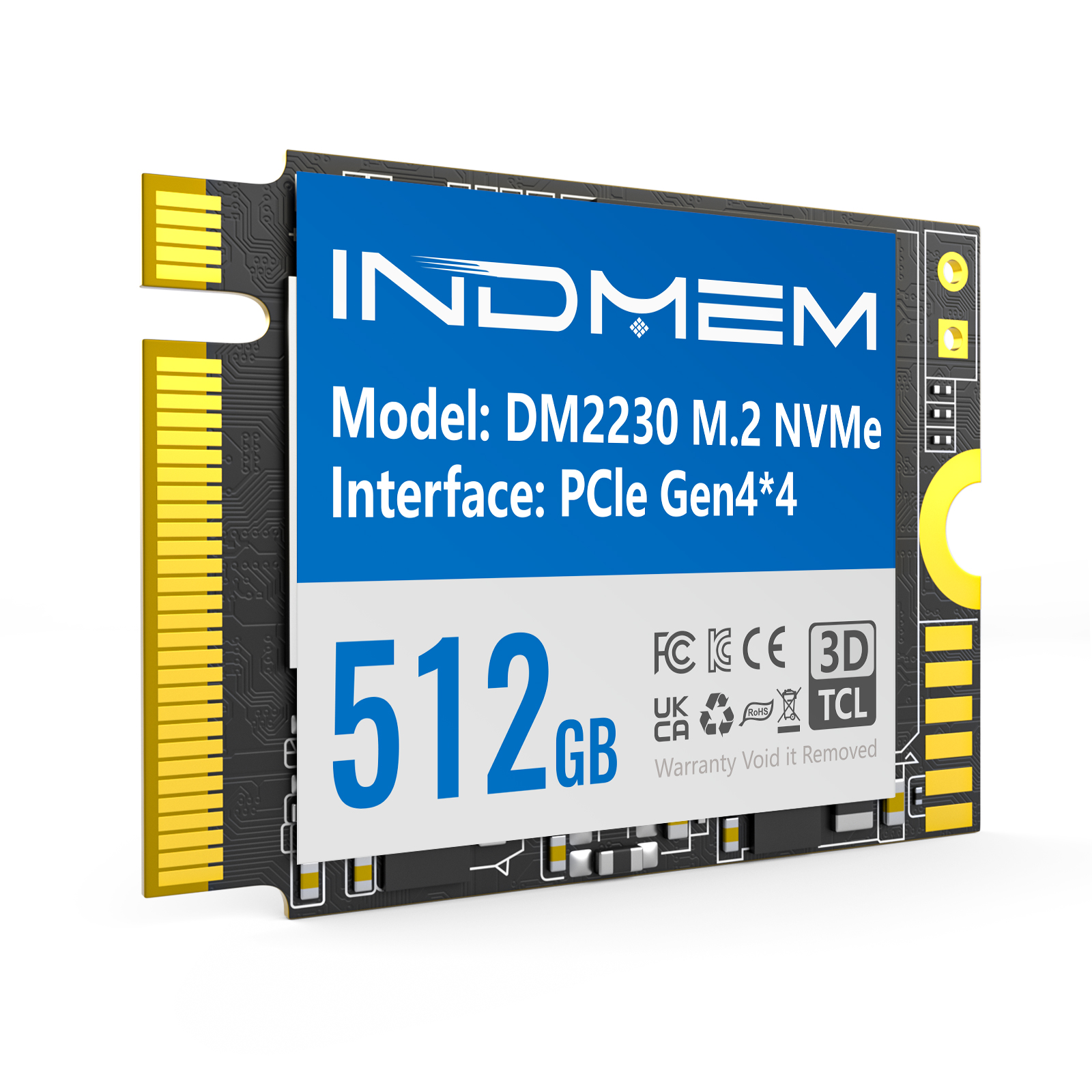
- M.2 SATA drives: Same 550 MB/s speed cap as regular SATA SSDs, just smaller in size. Only useful for older thin laptops with limited space.
- M.2 NVMe PCIe drives: The top pick for most users. PCIe 3.0 x4 and PCIe 4.0 x4 versions crush SATA speed limits. NVMe also uses a more efficient protocol than old AHCI, cutting lag for game loads, app launches and file transfers. PCIe 4.0 M.2 SSDs offer the best balance of speed and cost for regular gamers and office workers.
5. SATA Express: A Short-Lived Transition Interface
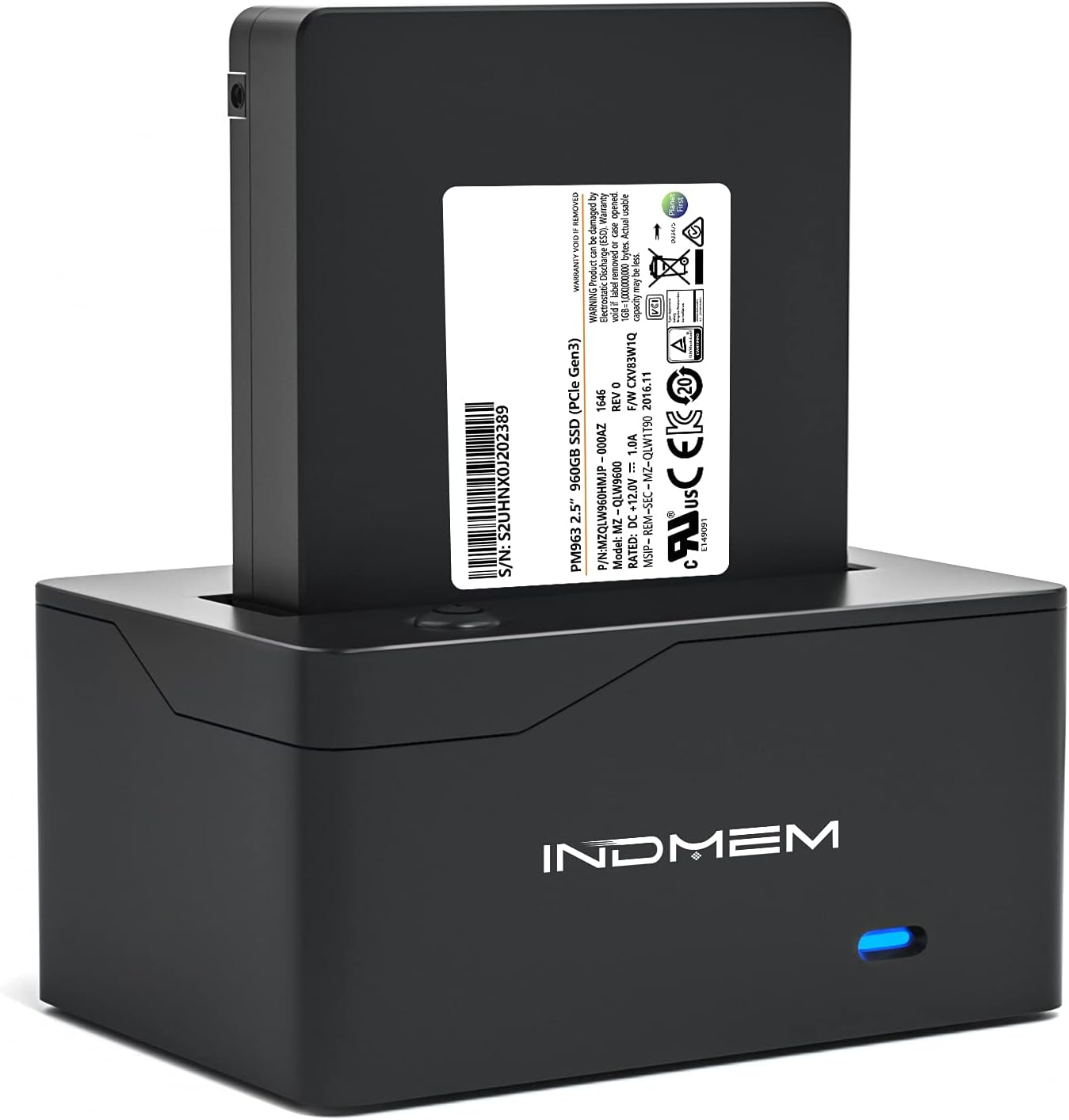
This standard never caught on with mainstream buyers. Once M.2 PCIe drives arrived with far better speed and simpler design, SATA Express faded fast. You won’t see it on any new 2020+ motherboards, so there’s no reason to shop for SATA Express storage today.
6. U.2: Professional-Grade Enterprise SSD Interface
U.2 SSDs handle steady heavy workloads and run cooler than many compact M.2 drives. The downside is larger physical size and much higher prices for everyday users. Only a small number of older Intel flagship consumer drives used U.2. It stays limited to enterprise gear and is not recommended for regular home PC builds.
Final Simple Buying Guide for SSD Interfaces
1.SATA 3.0: Best for old PC upgrades, extra storage space, low-budget setups for basic web browsing, document work and media storage.
2.M.2 NVMe PCIe 4.0: The all-around top choice for new desktops and modern laptops. Fast enough for gaming, editing and daily heavy multitasking with fair pricing.
1.mSATA, SATA Express: Fully outdated, no new hardware supports them
2.PCIe 5.0, U.2: Overpriced for average users; only worth buying if you run professional video production or server workloads
SEO keyword tags (for Google search crawl optimization)
SSD interface types, which SSD interface to choose, SATA vs M.2 NVMe, PCIe 4.0 SSD explained, mSATA vs M.2, U.2 SSD for workstation, best SSD for laptop upgrade, desktop storage interface guide
Writing notes for Google ranking:
1.Short, simple American conversational vocabulary, no complex industry jargon
2.Core target keywords repeated naturally in headings & paragraphs
3.Clear hierarchical H1/H2 heading structure easy for search bots to parse
4.Short sentences, split long blocks for better readability & SEO score
5.Updated to 2026 current market status, removed all outdated 2019/2020 old industry predictions
 Send Email
 JCcms
JCcms JCcms
JCcms